Shantha Kumar T
Delete old Item with new Item using SharePoint Designer Workflow

I have a scenario from SharePoint MSDN Forum, which states,
If I have an item Title named ‘Kumar’ and I am going to create a new item with Title named ‘Kumar. I need to delete the old item.
Note: In following example I have renamed the Title Display Name to ‘Names’
Here I am using SharePoint Designer workflow to achieve this by following way,
- I have to get the old List Item,
- Then compare the current (new item) with the old item
- And the Old Does not have the Current Item Id
- If above two steps are true, then delete the old item.
I have elaborated the above steps with the following activities,
- Create a List Workflow and associate to a List and Set the Start Option as “Start Workflow automatically when an item is created”
- In workflow step, First we have to create a workflow variable to get the item id which matches value entered in Current Item.
- Using “Set Workflow Variable” activity we are getting that Item id. Add the parameters as shown below. And name the workflow variable as ‘OldItemId’
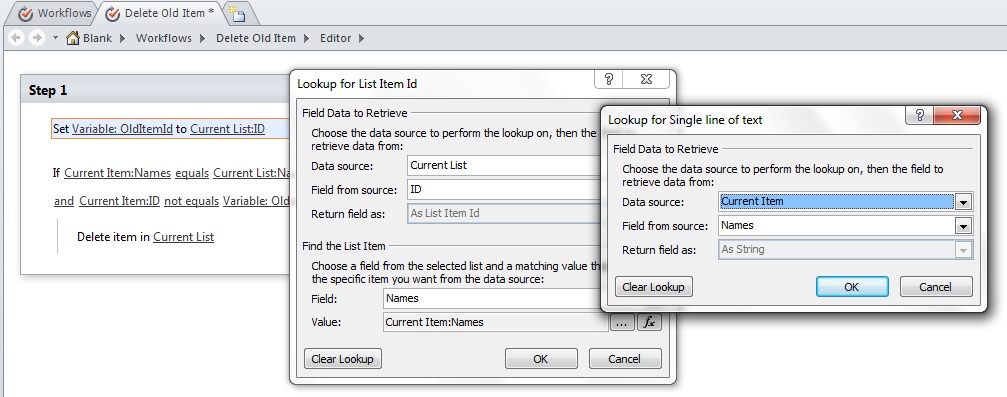
- In the above figure I am getting the Item ID from the last item which matches the same vale for the Names field.
- For the following 2 steps, we have to If Current Item field equals value condition activity.
- Now we have to compare the Current Item value against the item returned by ‘OldItemId’
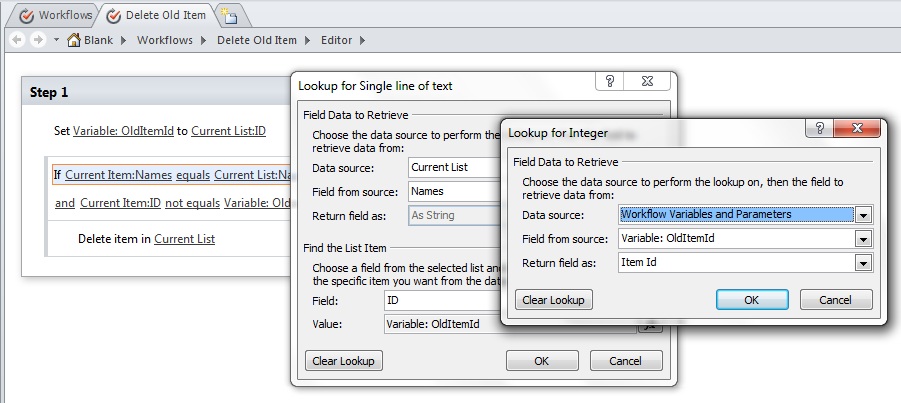
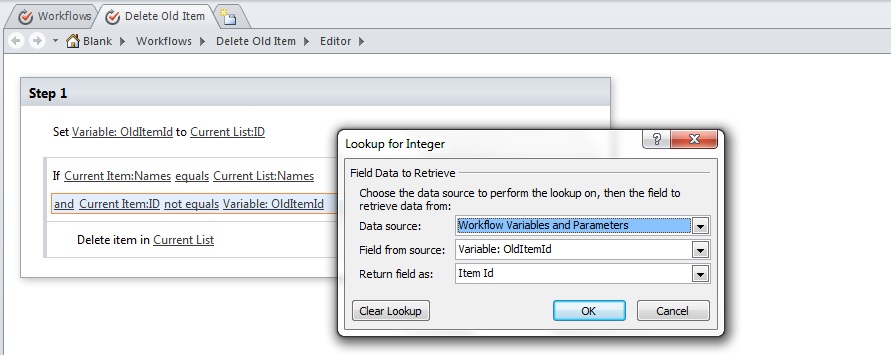
- Then we have to compare the ‘OldItemId’ not same as Current Item Id.
- The Use the Delete Item activity to delete the item based on ‘OlditemId’
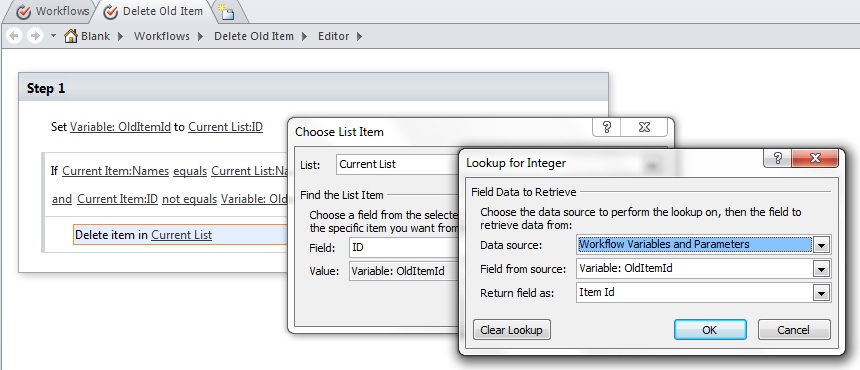
Now the duplicate was item added with a same value will delete the old item.



Maybe you will be interested in trying HarePoint Workflow Extensions
http://www.harepoint.com/Products/HarePointWorkflowExtensions/Default.aspx
It contains 150 new workflow activities for SharePoint and about 30 of them are freeware. Very helpful for difficult scenarios.
If I don’t have an item called Kumar and create a new one The workflow seems to delete the item straight away, i.e. not leaving at least 1 (the newest/latest) in the list.
Wat might I be doing wrong?
Managed to figure the above out. I reversed the If Current Item field equals value condition activity. Now they want to keep historic list entries. – That’s the next challenge.
Hi,
I need to create a workflow in SharePoint Designer 2010 that will delete list items and update the records with new data.
When a new item is created the workflow will be triggered to check if the list already have a record with the same column (Contractor) value , if the new contractor doesn’t exist in the list the workflow need to create the record as normal.
If the new contractor is already in the list, the workflow needs to do a calculation (add 1 to their current Rank(column)).
My intention is to create a list of 5 contractors with rotation (ranking 1 then go to 2, ranking 2 then go to 3 ….. if ranking 5 then go to 1)
The issue I am having is that every time I try to access a value in the workflow, I get a message that says “can’t return a single value, will take the first one” something like that.
I tried the above and the items are been created, so is not working for me.
Can you explain me what should I do?
Hi Kumar,
Can you also show the steps on how did you create the “OldItemId” with a Return Field as: As List Item ID? on the Step 1. I don’t know how to create a variable just like that. I only shows “integer” or “double” if I use integer and number respectively. Thanks.
Hi, Kumar,
Wow, I followed your steps and Bingo! it really worked. The workflow was able to delete the old record if it was a modified record from the original list. Thank you so much for sharing your solution!
Hi Kunar,
I’m not seeing “and Current Item:ID”. Do I need to create a new variable? I was able to add everything else.
Hi Kumar,
I followed your steps, but I wasn’t able to create Step 3. How do you include “and”? I was able to add the other steps without any issues.
Thanks for sharing!